

Microsoft Windows powers billions of devices across the globe, but not all Windows installations are created equal. With multiple editions such as Home, Pro, Enterprise, and Education, users are often unsure which version best suits their needs. Whether you’re a casual user, professional, student, or business owner, choosing the right Windows edition can make a significant difference in your experience.

Understanding Windows Versions vs Editions
Before we dive into the specific editions, it’s important to distinguish between a Windows version and a Windows edition:
- Version: Indicates the release/build of Windows (e.g., Windows 10, Windows 11, version 22H2). This reflects updates and features at a point in time.
- Edition: Defines the functionality and target audience. Examples include Home, Pro, Enterprise, and Education.

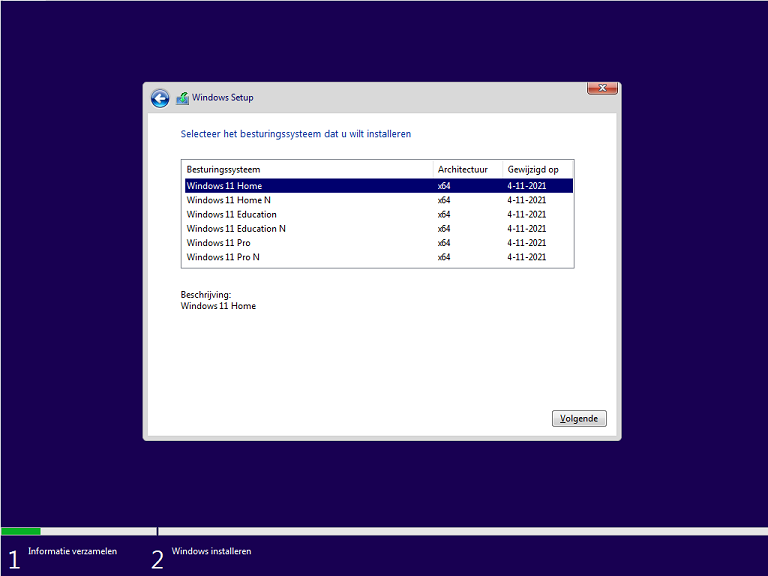
1. Windows Home
Windows Home is the default edition that comes with most consumer devices. It’s designed for everyday users and focuses on simplicity and ease of use.
Key Features:
- User-friendly interface
- Microsoft Store access
- Basic security features like Windows Defender
- Support for Microsoft Accounts and OneDrive
- Gaming features such as DirectX 12 and Game Mode
Best for: Home users, casual gamers, and general personal use.
2. Windows Pro
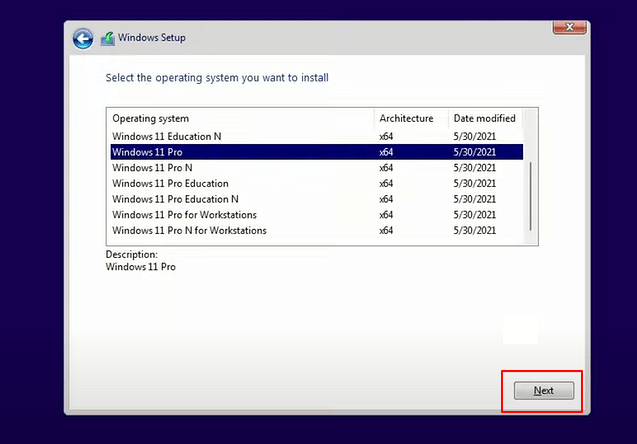
Windows Pro is built on the Home edition but adds advanced features for professionals, developers, and business users who need more control and security.
Key Features:
- BitLocker Drive Encryption
- Remote Desktop support
- Group Policy management
- Hyper-V virtualization
- Support for Azure Active Directory
Best for: Power users, IT professionals, remote workers, and small business owners.
3. Windows Enterprise
Windows Enterprise is designed for large-scale organizations. It builds on Pro with additional tools for advanced security, device management, and productivity at scale.
Key Features:
- App Virtualization (App-V)
- User Experience Virtualization (UE-V)
- Windows Defender Credential Guard and Application Guard
- DirectAccess and Microsoft Endpoint Configuration Manager
- Long-Term Servicing Channel (LTSC) for stability-focused environments
Best for: Enterprises managing hundreds or thousands of devices with dedicated IT infrastructure.
4. Windows Education
Windows Education offers the power of Enterprise but with settings and pricing geared toward educational institutions.
Key Features:
- Similar security and management tools as Enterprise
- Optimized for classroom settings
- Support for Microsoft Teams for Education and Office 365 Education
- Windows Autopilot for student device deployment
Best for: Schools, colleges, universities, and students enrolled in eligible programs.
Feature Comparison Table
| Feature | Home | Pro | Enterprise | Education |
|---|---|---|---|---|
| BitLocker Encryption | No | Yes | Yes | Yes |
| Remote Desktop | No | Yes | Yes | Yes |
| Group Policy Editor | No | Yes | Yes | Yes |
| Azure AD Join | No | Yes | Yes | Yes |
| Windows Update for Business | No | Yes | Yes | Yes |
| Long-Term Servicing Channel | No | No | Yes | No |
Conclusion: Choosing the Right Edition
Each Windows edition serves a distinct audience. If you’re a regular home user, Windows Home will likely meet all your needs. For enhanced control, business tools, and security, Windows Pro is a worthy upgrade. Enterprise is reserved for large-scale deployments, while Education brings robust tools to learning environments.
Understanding your goals and environment is the key to making the right choice. You don’t need the most expensive edition — just the one that fits your use case.
Still unsure? Contact your IT professional or visit Microsoft’s official website to learn more about licensing and compatibility options.